
Welcome to Sotto
Speak, and your words land wherever you type.
Hold A on your Sotto, talk, let go. Sotto writes it into the app in front of you: a chat, a document, a terminal.
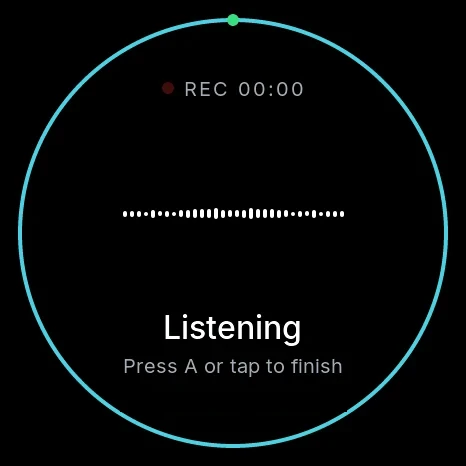
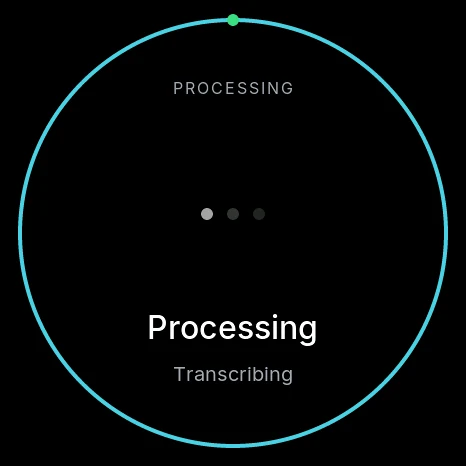
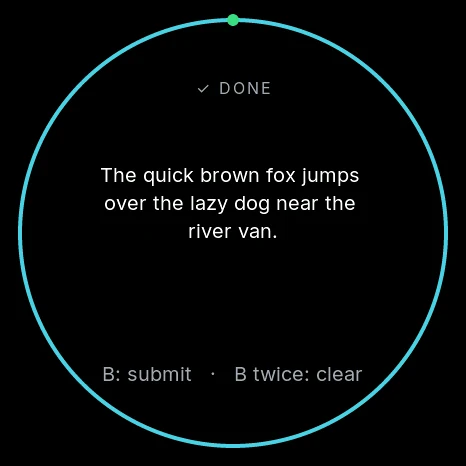
Version 0.1.0 · macOS 14 or later · Apple silicon
You are on your phone. Sotto installs on your Mac. Send this page to it, or type the address there.
Set up in three steps
About five minutes, one cable, no account.
-
 1
1Install
Open the download and drag Sotto to Applications. The speech model is inside the app, so nothing else downloads and dictation works offline from the first minute.
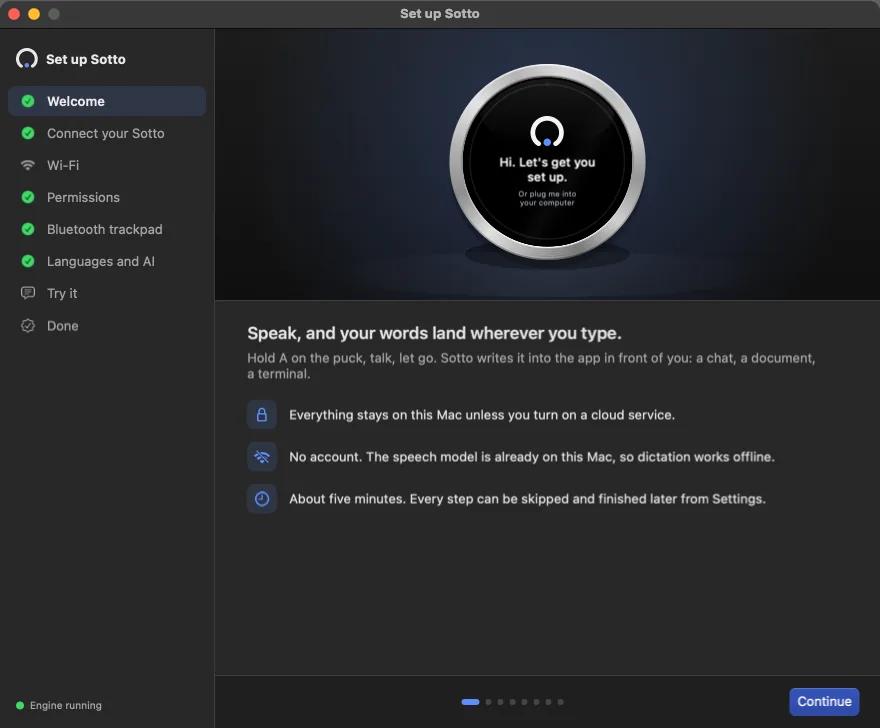
First launch opens the Setup Assistant. Close it any time; "Finish setup" waits in the menu bar.
-
 2
2Plug in
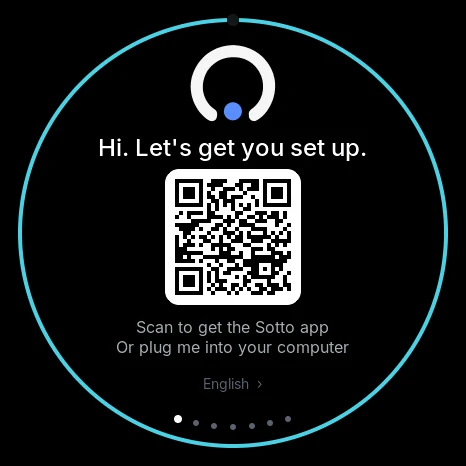
Plug the cable into your Sotto and into your Mac. The app finds it on USB by itself; there is no port to pick.
Screen dark? Hold the B button for 2 seconds to turn it on.
-
 3
3Match the code
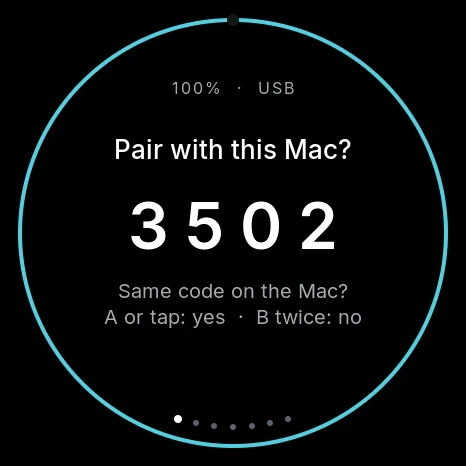
Your Mac and your Sotto show the same 4-digit code. Same code on both? Press A or tap the screen to pair.
Then join Wi-Fi so the cable can go, allow Accessibility, and try your first dictation. Every step can be skipped and finished later.
What you need
- A Mac with Apple silicon (M1 or later)
- macOS 14 Sonoma or later
- The USB-C cable from the box
- 2.4 GHz Wi-Fi, if you want to go wireless
Intel Macs are not supported by this version.

Your voice stays on your Mac
Speech is transcribed on your Mac, not in the cloud. Nothing leaves it unless you turn on a cloud service yourself. No account, no sign-in.
Help
macOS says Sotto can't be opened
In Applications, Control-click (or right-click) Sotto, choose Open, then Open again. You only do this once.
On newer macOS versions, if Open is not offered: try to open Sotto once, then go to System Settings > Privacy & Security, scroll down and click Open Anyway next to Sotto.
Which permissions does Sotto ask for?
Accessibility is required: it lets Sotto type into your apps. Input Monitoring is only needed if you turn on the keyboard shortcut, Microphone only for dictating with the Mac's own mic. The Setup Assistant opens the right System Settings page for each one.
Allowed it but nothing types? Remove Sotto from the list in System Settings, add it again, and reopen Sotto.
The Mac app can't find my Sotto
- Use the cable from the box. Many USB-C cables only charge and carry no data.
- Try another USB port, without a hub.
- Make sure your Sotto is on: hold B for 2 seconds.
My Sotto won't join my Wi-Fi
Sotto has 2.4 GHz Wi-Fi only. Networks that are 5 GHz only, need a company login (WPA-Enterprise) or a sign-in page will not work; keep using the cable.
If your Sotto joins but your Mac can't reach it, your network keeps devices apart. The app offers to send your Sotto your Mac's address; accept, and it connects directly.
Can I use it with my iPhone, Android phone or a Windows PC?
Not yet. Sotto for iPhone, Android and Windows is coming later. For now your Sotto needs a Mac to turn your voice into text.
How do I start over?
On your Sotto, open Settings and hold Factory reset for 2 seconds. It forgets its Macs, Wi-Fi and Bluetooth and returns to Welcome. On the Mac, choose Run setup again in Sotto's Dashboard.
iPhone and Android
Coming later. Sotto already works with your Mac today.